The log4javascript Framework is written by Tim Down to provide more flexible and configurable JavaScript logging than that provided by the standard browser developer tools (e.g. the console log). It was originally written to ease the pain of JavaScript debugging in the days before browsers came with advanced developer tools.
In the J1 Template, the framework is the core module for logging. All modules and adapters of the template use it to report what they are doing: status messages, timing information, warnings, and errors. If you develop your own extensions for the J1 Template, you can (and should) use the Logger module for your own messages as well.
| You do not need to configure the log4javascript library yourself to use logging in the J1 Template. The template ships with a ready-to-use setup: the logger adapter ( |
10-60 Minutes to read
Introduction
A logger in log4javascript is the object on which log calls are made. A logger may be assigned zero or more appenders. An appender is an object that actually does the logging: for example, a PopUpAppender logs messages to a pop-up console window while an AjaxAppender uses HTTP to send log messages back to the server. Each appender is assigned a layout, which is responsible for formatting log messages that are passed to an appender.
Every log message has a level. This is the severity of the message. Available levels are TRACE, DEBUG, INFO, WARN, ERROR and FATAL - these correspond to the logging methods trace, debug, info, warn, error and fatal of Logger. Levels are ordered as follows: TRACE < DEBUG < INFO < WARN < ERROR < FATAL. This means the FATAL is the most severe and TRACE the least. Also included are levels called ALL and OFF intended to enable or disable all logging respectively.
Both loggers and appenders also have threshold levels (by default, DEBUG for loggers and ALL for appenders). Setting a level to either a logger or an appender disables log messages of severity lower than that level. For instance, if a level of INFO is set on a logger then only log messages of severity INFO or greater will be logged, meaning DEBUG and TRACE messages will not be logged. If the same logger had two appenders, one of level DEBUG and one of level WARN then the first appender will still only log messages of INFO or greater while the second appender will only log messages of level WARN or greater.
This allows the developer fine control over which messages get logged where.
Configuring appenders
From version 1.4, configuring appenders is only possible via configuration methods. As the number of configuration options increases it becomes increasingly undesirable to use constructor parameters, so support for it has been dropped.
| The Ajax side of this example relies on having server-side processing in place. |
First, log4javascript is initialized, and a logger (actually the anonymous logger) is assigned to a variable called log:
  <script src="log4javascript.js"></script>
  <script>
     $(document).ready(function() {
      var log = log4javascript.getLogger();
    });
  </script>
log does not yet have any appenders, so a call to log.debug() will do nothing as yet. For this example we will use a PopUpAppender for debugging purposes. Since the lifespan of the messages displayed in the pop-up is only going to be the same as that of the window, a PatternLayout is used that displays the time of the message and not the date (note that this is also true of PopUpAppender’s default layout). The format of the string passed into PatternLayout is explained below.
  var popUpAppender = new log4javascript.PopUpAppender();
  var popUpLayout = new log4javascript.PatternLayout("%d{HH:mm:ss} %-5p - %m%n");
  popUpAppender.setLayout(popUpLayout);
  log.addAppender(popUpAppender);
Suppose that we also want to send log messages to the server, but limited to error messages only. To achieve this we use an AjaxAppender. Note that if no layout is specified then for convenience a default layout is used; in the case of AjaxAppender, that is HttpPostDataLayout, which formats log messages as a standard HTTP POST string from which a simple server-side script (not provided with log4javascript) will be able to extract posted parameters. This is fine for our purposes:
  var ajaxAppender = new log4javascript.AjaxAppender("myloggingservlet.do");
  ajaxAppender.setThreshold(log4javascript.Level.ERROR);
  log.addAppender(ajaxAppender);
Finally, some test log messages and the closing script tag:
  log.debug("Debugging message (appears in pop-up)");
  log.error("Error message (appears in pop-up and in server log)");
The full script:
<script  src="log4javascript.js"></script>
  <script>
    $(document).ready(function() {
      var log = log4javascript.getLogger();
      var popUpAppender = new log4javascript.PopUpAppender();
      var popUpLayout = new log4javascript.PatternLayout("%d{HH:mm:ss} %-5p - %m%n");
      popUpAppender.setLayout(popUpLayout);
      log.addAppender(popUpAppender);
      var ajaxAppender = new log4javascript.AjaxAppender("myloggingservlet.do");
      ajaxAppender.setThreshold(log4javascript.Level.ERROR);
      log.addAppender(ajaxAppender);
      log.debug("Debugging message (appears in pop-up)");
      log.error("Error message (appears in pop-up and in server log)");
    });
  </script>
Logger
It is possible to have multiple loggers in log4javascript. For example, you may wish to have a logger for debugging purposes that logs messages to a pop-up window and a separate logger that reports any client-side application errors to the server via Ajax.
log4javascript supports hierarchical loggers, implemented in the same way as log4j. In summary, you specify a logger’s parent logger by means of a dot between the parent logger name and the child logger name. Therefore the logger tim.app.security inherits from tim.app, which in turn inherits from tim which, finally, inherits from the root logger.
What inheritance means for a logger is that in the absence of a threshold level set specifically on the logger it inherits its level from its parent; also, a logger inherits all its parent’s appenders (this is known as appender additivity in log4j. This behaviour can be enabled or disabled via setAdditivity(). See below). In the above example, if the root logger has a level of DEBUG and one appender, each of the loggers tim.app.security, tim.app and tim would inherit the root level’s appender. If, say, tim.app’s threshold level was set to `WARN, tim’s effective level would remain at `DEBUG (inherited from the root logger) while tim.app.security’s effective level would be `WARN, inherited from tim.app. The important thing to note is that appenders accumulate down the logger hierarchy while levels are simply inherited from the nearest ancestor with a threshold level set.
  // Create a console appender that is inherited by all loggers
  var appender = new log4javascript.PopUpAppender();
  appender.setThreshold(log4javascript.Level.DEBUG);
  // Limit the number of messages displayed in the console at any one time
  appender.setMaxMessages(2000);
  log4javascript.getRootLogger().addAppender(appender);
  // Disable all logging except ERROR and FATAL for the "MyApp.Components"
  // logger and all its descendants (including "MyApp.Components.Component1" and
  // "MyApp.Components.Component2")
log4javascript.getLogger("MyApp.Components").setLevel(log4javascript.Level.ERROR); var component1 = (function() {
var log = log4javascript.getLogger("MyApp.Components.Component1");
//
// function stuff
//
})();
var component2 = (function() {
var log = log4javascript.getLogger("MyApp.Components.Component2");
//
// function stuff
//
})();For a detailed explanation of the logger hierarchy, see the log4j v 1.x manual.
| It is not possible to instantiate loggers directly. Instead you must use one of the methods of the |
Differences to log4j
For the sake of keeping log4javascript as light and useful as possible, many of the features of log4j that seem over-complex or inappropriate for JavaScript have not been implemented. These include:
-
Filters
-
Configurators
-
Renderers
Enabling and disabling
All logging can be enabled or disabled in log4javascript in a number of ways:
-
At any time, you can call
log4javascript.setEnabled(enabled). This will enable or disable all logging, depending on whetherenabledis set totrueorfalse. -
Assign a value to the global variable
log4javascript_disabled. The idea of this is so that you can enable or disable logging for a whole site by including a JavaScript file in all your pages, and allowing this file to be included before log4javascript.js to guarantee that no logging can take place without having to alter log4javascript.js itself. Your included .js file would include a single line such as the following:
var log4javascript_disabled = true; * Assign your logger object a value of log4javascript.getNullLogger().
-
Replace your copy of log4javascript.js with stubs/log4javascript.js, provided in the distribution. This file has a stub version of each of the functions and methods in the log4javascript API and can simply be dropped in in place of the main file. The compressed version of the stub is typically 15 times smaller than the compressed version of the main file.
Error handling
log4javascript has a single rudimentary logger-like object of its own to handle messages generated by log4javascript itself. This logger is called LogLog and is accessed via log4javascript.logLog.
Methods
LogLog offers a small set of methods to control how log4javascript reports its own internal messages and errors. In everyday use, you will rarely need these methods. They are most helpful if the logging setup itself does not work as expected and you want to find out why.
setQuietMode
Whether to turn quiet mode on or off. In quiet mode, no messages sent to LogLog have any visible effect. By default, quiet mode is switched off.
- Synopsis
-
void setQuietMode(Boolean quietMode) - Parameters
-
quietMode
setAlertAllErrors
Whether to show all errors or just the first.
Sets how many errors LogLog will display alerts for. By default, only the first error encountered generates an alert to the user. If you turn all errors on by supplying true to this method then all errors will generate alerts.
- Synopsis
-
void setAlertAllErrors(Boolean alertAllErrors) - Parameters
-
showAllErrors
debug
Logs a debugging message to an in-memory list.
- Synopsis
-
void debug(String message[, Error exception]) - Parameters
-
message,exception[optional]
displayDebug
Displays an alert of all debugging messages.
- Synopsis
-
void displayDebug()
warn
Currently has no effect.
- Synopsis
-
void warn(String message[, Error exception]) - Parameters
-
message,exception[optional]
error
Generates an alert to the user if and only if the error is the first one encountered and setAlertAllErrors(true) has not been called.
- Synopsis
-
void error(String message[, Error exception]) - Parameters
-
message,exception[optional]
Levels
Levels are available as static properties of the log4javascript.Level object. In ascending order of severity:
-
log4javascript.Level.ALL -
log4javascript.Level.TRACE -
log4javascript.Level.DEBUG -
log4javascript.Level.INFO -
log4javascript.Level.WARN -
log4javascript.Level.ERROR -
log4javascript.Level.FATAL -
log4javascript.Level.OFF
Features
The following sections give a short overview of the most important features of the log4javascript framework: how the library can be loaded (AMD support), how all classes are accessed through the central log4javascript object, and the basic building blocks every logging setup is made of: loggers, appenders, layouts, and levels. If you are new to logging frameworks, read the section Framework basics first. All other chapters of this manual build on these four terms.
AMD
Since version 1.4.10, log4javascript comes with AMD support hence can be loaded by a script loader such as RequireJS.
The current version of log4javascript is designed to run in a browser, only. If not using AMD, log4javascript creates a single property of the global object (to all intents and purposes, a global variable) in the namespace of root (window) called log4javascript.
The log4javascript object
All of log4javascript's instantiable classes are accessible via the log4javascript object, which acts as a namespace. Therefore references to all class names must be preceded with log4javascript.
For example:
var popUpAppender = new _log4javascript_.PopUpAppender();Framework basics
Loggers, Appenders, Layouts and Levels ..
A logger in log4javascript is the object on which log calls are made. A logger may be assigned zero or more appenders. An appender is an object that actually does the logging: for example, a PopUpAppender logs messages to a pop-up console window while an AjaxAppender uses HTTP to send log messages back to the server. Each appender is assigned a layout, which is responsible for formatting log messages that are passed to an appender.
Every log message has a level. This is the severity of the message. Available levels are TRACE, DEBUG, INFO, WARN, ERROR and FATAL - these correspond to the logging methods trace, debug, info, warn, error and fatal of Logger. Levels are ordered as follows: TRACE < DEBUG < INFO < WARN < ERROR < FATAL. This means the FATAL is the most severe and TRACE the least. Also included are levels called ALL and OFF intended to enable or disable all logging respectively.
Both loggers and appenders also have threshold levels (by default, DEBUG for loggers and ALL for appenders). Setting a level to either a logger or an appender disables log messages of severity lower than that level. For instance, if a level of INFO is set on a logger then only log messages of severity INFO or greater will be logged, meaning DEBUG and TRACE messages will not be logged. If the same logger had two appenders, one of level DEBUG and one of level WARN then the first appender will still only log messages of INFO or greater while the second appender will only log messages of level WARN or greater.
This allows the developer fine control over which messages get logged where.
Methods
The following sections describe the methods of the log4javascript API. The first group covers the methods of the log4javascript object itself: creating loggers, enabling or disabling logging, and managing events. The second group covers the methods available on Logger objects: adding appenders, setting log levels, and writing log messages at the different levels (trace, debug, info, warn, error, and fatal).
In the J1 Template, the loggers are already prepared by the logger adapter. In most cases, all you need in your own code are the two steps shown below: get a logger and write messages to it.
  var logger = log4javascript.getLogger('j1.mymodule');
  logger.info('module is being initialized');
  logger.warn('something unexpected happened');
getLogger
Returns a logger with the specified name, creating it if a logger with that name does not already exist. If no name is specified, a logger is returned with name [anonymous], and subsequent calls to getLogger() (with no logger name specified) will return this same logger object.
- Synopsis
-
Logger getLogger([String loggerName])
| Parameter | Default | Description |
|---|---|---|
| n/a | Specifies the logger name (hierarchy). The logger name is optional. |
| The logger names |
getDefaultLogger
Convenience method that returns the default logger. In the standard edition, the default logger has a single appender: a PopUpAppender with the default layout, width and height, and with focusPopUp set to false and lazyInit, useOldPopUp and complainAboutPopUpBlocking all set to true.
- Synopsis
-
Logger getDefaultLogger()
| In the production edition, the default logger has no appenders. |
getNullLogger
Returns an empty logger with no appenders. Useful for disabling all logging.
- Synopsis
-
Logger getNullLogger()
getRootLogger
Returns the root logger from which all other loggers derive.
- Synopsis
-
Logger getRootLogger()
resetConfiguration
Resets all loggers to their default level.
- Synopsis
-
void resetConfiguration()
setEnabled
Enables or disables all logging, depending on enabled.
- Synopsis
-
void setEnabled(Boolean enabled)
| Parameter | Default | Description |
|---|---|---|
| n/a | Set to |
isEnabled
Returns true or false depending on whether logging is enabled.
- Synopsis
-
Boolean isEnabled()
addEventListener
Adds a function to be called when an event of the type specified occurs in log4javascript. Supported event types are load (occurs once the page has loaded) and error.
- Synopsis
-
void addEventListener(String eventType, Function listener) - Parameters
-
eventType,listener
Each listener is passed three parameters:
-
sender. The object that raised the event (i.e. the log4javascript object); -
eventType. The type of the event; -
eventArgs. An object containing event-specific arguments. For theerrorevent, this is an object with propertiesmessageandexception. For theloadevent this is an empty object.
removeEventListener
Removes the event listener function supplied for the event of the type specified.
- Synopsis
-
void removeEventListener(String eventType, Function listener) - Parameters
-
eventType,listener
dispatchEvent
Raises an event of type eventType on the log4javascript object. Each of the listeners for this type of event (registered via addEventListener) is called and passed eventArgs as the third parameter.
- Synopsis
-
void dispatchEvent(String eventType, Object eventArgs) - Parameters
-
eventType,eventArgs
setEventTypes
Used internally by log4javascript to specify the types of events that the log4javascript object can raise.
- Synopsis
-
void setEventTypes(Array eventTypes) - Parameters
-
eventTypes
setShowStackTraces
Enables or disables displaying of error stack traces, depending on show. By default, stack traces are not displayed. (Only works in Firefox)
- Synopsis
-
void setShowStackTraces(Boolean show) - Parameters
-
show
evalInScope
This evaluates the given expression in the log4javascript scope, thus allowing scripts to access internal log4javascript variables and functions. This was written for the purposes of automated testing but could be used by custom extensions to log4javascript.
- Synopsis
-
Object evalInScope(String expr) - Parameters
-
expr
addAppender
Adds the given appender.
- Synopsis
-
void addAppender(Appender appender) - Parameters
-
appender
removeAppender
Removes the given appender.
- Synopsis
-
void removeAppender(Appender appender) - Parameters
-
appender
removeAllAppenders
Clears all appenders for the current logger.
- Synopsis
-
void removeAllAppenders()
setLevel
Sets the level. Log messages of a lower level than level will not be logged. Default value is DEBUG.
- Synopsis
-
void setLevel(Level level) - Parameters
-
level
getLevel
Returns the level explicitly set for this logger or null if none has been set.
- Synopsis
-
Level getLevel()
getEffectiveLevel
Returns the level at which the logger is operating. This is either the level explicitly set on the logger or, if no level has been set, the effective level of the logger’s parent.
- Synopsis
-
Level getEffectiveLevel()
setAdditivity
Sets whether appender additivity is enabled (the default) or disabled. If set to false, this particular logger will not inherit any appenders form its ancestors. Any descendant of this logger, however, will inherit from its ancestors as normal, unless its own additivity is explicitly set to false.
- Synopsis
-
void setAdditivity(Boolean additivity) - Parameters
-
additivity
Default value is true.
getAdditivity
Returns whether additivity is enabled for this logger.
- Synopsis
-
Boolean getAdditivity()
log
Generic logging method used by wrapper methods such as debug, error etc.
- Synopsis
-
void log(Level level, Object params) - Parameters
-
level,params
trace
Logs one or more messages and optionally an error at level TRACE.
- Synopsis
-
void trace(Object message1[, Object message2, … ][, Error exception]) - Parameters
-
message1[, message2…],exception[optional]
debug
Logs one or more messages and optionally an error at level DEBUG.
- Synopsis
-
void debug(Object message1[, Object message2, … ][, Error exception]) - Parameters
-
message1[, message2…],exception[optional]
info
Logs one or more messages and optionally an error at level INFO.
- Synopsis
-
void info(Object message1[, Object message2, … ][, Error exception]) - Parameters
-
message1[, message2…],exception[optional]
warn
Logs one or more messages and optionally an error at level WARN.
- Synopsis
-
void warn(Object message1[, Object message2, … ][, Error exception]) - Parameters
-
message1[, message2…],exception[optional]
error
Logs one or more messages and optionally an error at level ERROR.
- Synopsis
-
void error(Object message1[, Object message2, … ][, Error exception]) - Parameters
-
message1[, message2…],exception[optional]
fatal
Logs one or more messages and optionally an error at level FATAL.
- Synopsis
-
void fatal(Object message1[, Object message2, … ][, Error exception]) - Parameters
-
message1[, message2…],exception[optional]
isEnabledFor
Returns whether the logger is enabled for the specified level.
- Synopsis
-
Boolean isEnabledFor(Level level, Error exception) - Parameters
-
level
isTraceEnabled
Returns whether the logger is enabled for TRACE messages.
- Synopsis
-
Boolean isTraceEnabled()
isDebugEnabled
Returns whether the logger is enabled for DEBUG messages.
- Synopsis
-
Boolean isDebugEnabled()
isInfoEnabled
Returns whether the logger is enabled for INFO messages.
- Synopsis
-
Boolean isInfoEnabled()
isWarnEnabled
Returns whether the logger is enabled for WARN messages.
- Synopsis
-
Boolean isWarnEnabled()
isErrorEnabled
Returns whether the logger is enabled for ERROR messages.
- Synopsis
-
Boolean isErrorEnabled()
isFatalEnabled
Returns whether the logger is enabled for FATAL messages.
- Synopsis
-
Boolean isFatalEnabled()
group
Starts a new group of log messages. In appenders that support grouping (currently PopUpAppender and InPageAppender), a group appears as an expandable section in the console, labelled with the name specified. Specifying initiallyExpanded determines whether the group starts off expanded (the default is true). Groups may be nested.
- Synopsis
-
void group(String name, Boolean initiallyExpanded) - Parameters
-
name,initiallyExpanded[optional]
groupEnd
Ends the current group. If there is no group then this function has no effect.
- Synopsis
-
void groupEnd()
time
Starts a timer with name name. When the timer is ended with a call to timeEnd using the same name, the amount of time that has elapsed in milliseconds since the timer was started is logged at level level. If not level is supplied, the level defaults to INFO.
- Synopsis
-
void time(String name, Level level) - Parameters
-
name,level[optional]
timeEnd
Ends the timer with name name and logs the time elapsed.
- Synopsis
-
void timeEnd(String name) - Parameters
-
name
assert
Asserts the given expression is true or evaluates to true. If so, nothing is logged. If not, an error is logged at the ERROR level.
- Synopsis
-
void assert(Object expr) - Parameters
-
expr
Appenders
This is a lower-level layer which provides Appender objects. The Appender object is responsible for publishing logging information to various preferred destinations such as a database, file, console, UNIX Syslog, etc.
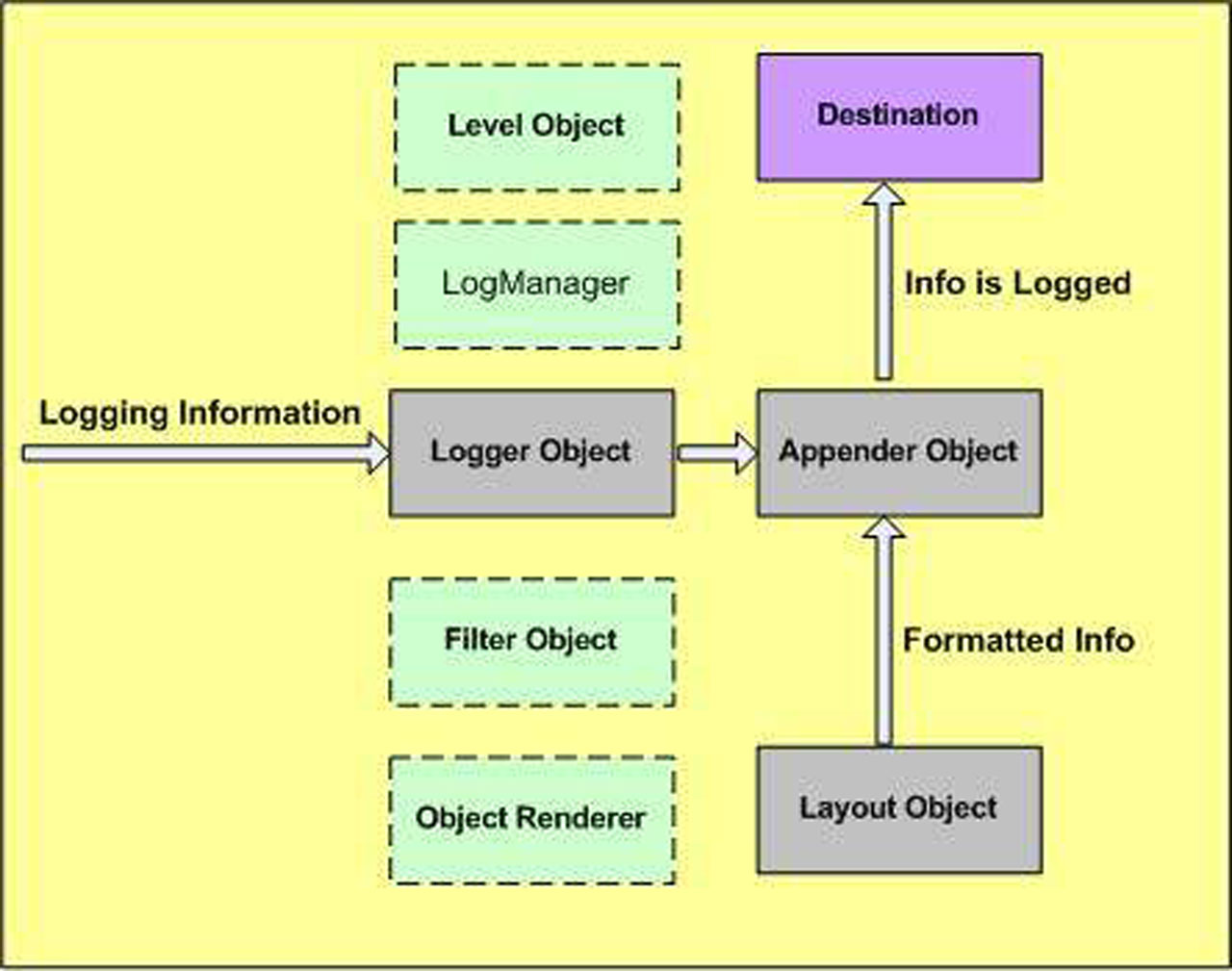
Configuration
From version 1.4, configuring appenders is only possible via configuration methods. As the number of configuration options increases it becomes increasingly undesirable to use constructor parameters, so support for it has been dropped.
| The Ajax side of this example relies on having server-side processing in place. |
First, log4javascript is initialized, and a logger (actually the anonymous logger) is assigned to a variable called log:
  <script src="log4javascript.js"></script>
  <script>
     $(document).ready(function() {
      var log = log4javascript.getLogger();
    });
  </script>
log does not yet have any appenders, so a call to log.debug() will do nothing as yet. For this example we will use a PopUpAppender for debugging purposes. Since the lifespan of the messages displayed in the pop-up is only going to be the same as that of the window, a PatternLayout is used that displays the time of the message and not the date (note that this is also true of PopUpAppender’s default layout). The format of the string passed into PatternLayout is explained below.
  var popUpAppender = new log4javascript.PopUpAppender();
  var popUpLayout = new log4javascript.PatternLayout("%d{HH:mm:ss} %-5p - %m%n");
  popUpAppender.setLayout(popUpLayout);
  log.addAppender(popUpAppender);
Suppose that we also want to send log messages to the server, but limited to error messages only. To achieve this we use an AjaxAppender. Note that if no layout is specified then for convenience a default layout is used; in the case of AjaxAppender, that is HttpPostDataLayout, which formats log messages as a standard HTTP POST string from which a simple server-side script (not provided with log4javascript) will be able to extract posted parameters. This is fine for our purposes:
  var ajaxAppender = new log4javascript.AjaxAppender("myloggingservlet.do");
  ajaxAppender.setThreshold(log4javascript.Level.ERROR);
  log.addAppender(ajaxAppender);
Finally, some test log messages and the closing script tag:
  log.debug("Debugging message (appears in pop-up)");
  log.error("Error message (appears in pop-up and in server log)");
The full script:
<script  src="log4javascript.js"></script>
  <script>
    $(document).ready(function() {
      var log = log4javascript.getLogger();
      var popUpAppender = new log4javascript.PopUpAppender();
      var popUpLayout = new log4javascript.PatternLayout("%d{HH:mm:ss} %-5p - %m%n");
      popUpAppender.setLayout(popUpLayout);
      log.addAppender(popUpAppender);
      var ajaxAppender = new log4javascript.AjaxAppender("myloggingservlet.do");
      ajaxAppender.setThreshold(log4javascript.Level.ERROR);
      log.addAppender(ajaxAppender);
      log.debug("Debugging message (appears in pop-up)");
      log.error("Error message (appears in pop-up and in server log)");
    });
  </script>
Methods
There are methods common to all appenders, as listed below.
doAppend
- Synopsis
-
void doAppend(LoggingEvent loggingEvent) - Parameters
-
loggingEvent
Checks the logging event’s level is at least as severe as the appender’s threshold and calls the appender’s append method if so.
| This method should not in general be used directly or overridden. |
append
Appender-specific method to append a log message. Every appender object should implement this method.
- Synopsis
-
void append(LoggingEvent loggingEvent) - Parameters
-
loggingEvent
setLayout
Sets the appender’s layout.
- Synopsis
-
void setLayout(Layout layout) - Parameters
-
layout
getLayout
Returns the appender’s layout.
- Synopsis
-
Layout getLayout()
setThreshold
Sets the appender’s threshold. Log messages of level less severe than this threshold will not be logged.
- Synopsis
-
void setThreshold(Level level) - Parameters
-
level
getThreshold
Returns the appender’s threshold.
- Synopsis
-
Level getThreshold()
toString
Returns a string representation of the appender. Every appender object should implement this method.
- Synopsis
-
string toString()
AlertAppender
Displays a log message as a JavaScript alert.
Editions: Standard
Constructor
- Synopsis
-
AlertAppender()
AjaxAppender
A flexible appender that asynchronously sends log messages to a server via HTTP.
The default configuration is to send each log message as a separate HTTP post request to the server using an HttpPostDataLayout, without waiting for a response before sending any subsequent requests. However, an AjaxAppender may be configured to do any one of or combinations of the following:
-
send log messages in batches (if the selected layout supports it - particularly suited to
AjaxAppenderareJsonLayoutandXmlLayout, both of which allow batching); -
wait for a response from a previous request before sending the next log message / batch of messages;
-
send all queued log messages at timed intervals.
-
AjaxAppender relies on the
XMLHttpRequestobject. It also requires the presence of correctly implementedsetRequestHeadermethod on this object, which rules out Opera prior to version 8.01. If your browser does not support the necessary objects then one alert will display to explain why it doesn’t work, after which the appender will silently switch off. -
In AjaxAppender only,
setLayoutmay not be called after the first message has been logged. -
The default layout is
HttpPostDataLayout. -
From version 1.4, log message data is always sent as one or more name/value pairs. In the case of
HttpPostDataLayout, data is sent the same as in previous versions. For other layouts such asJsonLayoutandXmlLayout, the formatted log message is posted as the value of a parameter calleddata, though this may be changed viasetPostVarName.
From version 1.4.5, it is possible to override this behaviour so that logging data is sent as the request payload rather than as a posted form variable. This is done by setting the Content-Type header sent with each Ajax request explicitly. For example, if using a JsonLayout:
ajaxAppender.addHeader("Content-Type", "application/json");-
From version 1.4, log message timestamps are sent as standard JavaScript times, i.e. the number of milliseconds since 00:00:00 UTC on January 1, 1970.
-
Also from version 1.4, any outstanding log messages may optionally be sent when the main page unloads (i.e. user follows a link, closes the window or refreshes the page). This behaviour may be enabled using
setSendAllOnUnload; see below.
This behaviour is dependent on window.onbeforeunload; unfortunately, Opera does not always raise this event, so this feature does not work reliably in Opera. * From version 1.4.8, AjaxAppender supports the sending of cookies in CORS requests via the new withCredentials constructor parameter.
Constructor
- Synopsis
-
AjaxAppender(String url[, Boolean withCredentials]) - Parameters
-
url
The URL to which log messages should be sent. Note that this is subject to the usual Ajax restrictions: the URL should be in the same domain as that of the page making the request.
-
withCredentials
Specifies whether cookies should be sent with each request.
Methods
In addition to the methods shared by all appenders, AjaxAppender provides methods to control how and when log messages are sent to the server: sending messages in batches, sending at timed intervals, waiting for a server response, adding extra HTTP headers, and callbacks that run on success or failure. Note that most of these settings can only be changed before the first log message has been logged.
setSendAllOnUnload
Whether to send all remaining unsent log messages to the server when the page unloads.
- Synopsis
-
void setSendAllOnUnload(Boolean sendAllOnUnload)
Default: false.
| Not available after first message logged. |
-
This feature was found not to work prior to version 1.4.3 in WebKit browsers (e.g. Google Chrome, Safari). As a result, a workaround was implemented in 1.4.3 which has the unfortunate side effect of popping up a confirmation dialog to the user if there are any log messages to send when the page unloads. As a result, this feature is now obtrusive for the user and is therefore disabled by default.
-
This feature does not work in any version of Opera.
isSendAllOnUnload
Returns whether all remaining unsent log messages are sent to the server when the page unloads.
- Synopsis
-
Boolean isSendAllOnUnload()
setPostVarName
Sets the post variable name whose value will be the formatted log message(s) for each request.
- Synopsis
-
void setPostVarName(String postVarName) - Default
-
data
| Not available after first message logged. This has no effect if the current layout is an |
getPostVarName
Returns the post variable name whose value will be the formatted log message(s) for each request.
- Synopsis
-
String getPostVarName()
setTimed
Whether to send log messages to the server at regular, timed intervals.
- Synopsis
-
void setTimed(Boolean timed) - Default
-
false
| Not available after first message logged. |
isTimed
Returns whether log messages are sent to the server at regular, timed intervals.
- Synopsis
-
Boolean isTimed()
setWaitForResponse
Sets whether to wait for a response from a previous HTTP request from this appender before sending the next log message / batch of messages.
- Synopsis
-
void setWaitForResponse(Boolean waitForResponse) - Default
-
false
| Not available after first message logged. |
isWaitForResponse
Returns whether the appender waits for a response from a previous HTTP request from this appender before sending the next log message / batch of messages.
- Synopsis
-
Boolean isWaitForResponse()
setBatchSize
Sets the number of log messages to send in each request. If not specified, defaults to 1.
- Synopsis
-
void setBatchSize(Number batchSize)
| Not available after first message logged. |
-
Setting this to a number greater than 1 means that the appender will wait until it has forwarded that many valid log messages before sending any more. This also means that if the page unloads for any reason and
sendAllOnUnloadis not set totrue, any log messages waiting in the queue will not be sent. -
If batching is used in conjunction with timed sending of log messages, messages will still be sent in batches of size
batchSize, regardless of how many log messages are queued by the time the timed sending is invoked. Incomplete batches will not be sent except when the page unloads, ifsendAllOnUnloadis set totrue.
getBatchSize
Returns the number of log messages sent in each request. See above for more details.
- Synopsis
-
Number getBatchSize()
setTimerInterval
Sets the length of time in milliseconds between each sending of queued log messages.
- Synopsis
-
void setTimerInterval(Number timerInterval)
| Not available after first message logged. |
-
timerIntervalonly has an effect in conjunction withtimed(set bysetTimed(). Iftimedis set to false thentimerIntervalhas no effect. -
Each time the queue of log messages or batches of messages is cleared, the countdown to the next sending only starts once the final request has been sent (and, if
waitForResponseis set totrue, the final response received). This means that the actual interval at which the queue of messages is cleared cannot be fixed.
getTimerInterval
Returns the length of time in milliseconds between each sending of queued log messages. See above for more details.
- Synopsis
-
Number getTimerInterval()
setRequestSuccessCallback
Sets the function that is called whenever a successful request is made, called at the point at which the response is received. This feature can be used to confirm whether a request has been successful and act accordingly.
A single parameter, xmlHttp, is passed to the callback function. This is the XMLHttpRequest object that performed the request.
- Synopsis
-
void setRequestSuccessCallback(Function requestSuccessCallback)
setFailCallback
Sets the function that is called whenever any kind of failure occurs in the appender, including browser deficiencies or configuration errors (e.g. supplying a non-existent URL to the appender). This feature can be used to handle AjaxAppender-specific errors.
A single parameter, message, is passed to the callback function. This is the error-specific message that caused the failure.
- Synopsis
-
void setFailCallback(Function failCallback)
setSessionId
Sets the session id sent to the server each time a request is made.
- Synopsis
-
void setSessionId(String sessionId)
getSessionId
- Synopsis
-
String getSessionId()
Returns the session id sent to the server each time a request is made.
addHeader
Adds an HTTP header that is sent with each request. Specifying the Content-Type header using this method will force logging data to be sent as the Ajax request payload rather than as a posted form field.
- Synopsis
-
void addHeader(String name, String value)
getHeaders
- Synopsis
-
Array getHeaders()
Returns an array of the additional headers that are sent with each HTTP request. Each array item is an object with properties name and value.
sendAll
Sends all log messages in the queue. If log messages are batched then only completed batches are sent.
- Synopsis
-
void sendAll()
PopUpAppender
Logs messages to a pop-up console window. The pop-up displays a list of all log messages, and has the following features:
-
log messages are colour-coded by severity;
-
log messages are displayed in a monospace font to allow easy readability;
-
switchable wrap mode to allow wrapping of long lines
-
all whitespace in log messages is honoured (except in wrap mode);
-
filters to show and hide messages of a particular level;
-
search facility that allows searching of log messages as you type, with the following features:
-
supports regular expressions;
-
case sensitive or insensitive matching;
-
buttons to navigate through all the matches;
-
switch to highlight all matches;
-
switch to filter out all log messages that contain no matches;
-
switch to enable or disable the search;
-
search is dynamically applied to every log message as it is added to the console.
-
-
switch to toggle between logging from the top down and from the bottom up
-
switch to turn automatic scrolling when a new message is logged on and off
-
switch to turn off all logging to the pop-up (useful if a timer is generating unwanted log messages)
-
optional configurable limit to the number of log message that are displayed. If set and this limit is reached, each new log message will cause the oldest one to be discarded
-
grouped log messages. Groups may be nested and each has a button to show or hide the log messages in that group
-
clear button to allow user to delete all current log messages.
-
command prompt with up/down arrow history. Command line functions may be added to the appender. Several command line functions are built in:
-
$(String id), Prints a string representation of a single element with the id supplied. -
dir(Object obj), Prints a list of a properties of the object supplied. -
dirxml(HTMLElement el), Prints the XML source code of an HTML or XML element -
cd(Object win), Changes the scope of execution of commands to the named frame or window (either a window/frame name or a reference to a window object may be supplied). -
clear(), Clears the console. -
keys(Object obj), Prints a list of the names of all properties of the object supplied. -
values(Object obj), Prints a list of the values of all properties of the object supplied. -
expansionDepth(Number depth), Sets the number of levels of expansion of objects that are displayed by the command line. The default value is 1.
-
| You will need to disable pop-up blockers to use it. The default layout for this appender is |
Constructor
PopUpAppender([Boolean lazyInit, Boolean initiallyMinimized, Boolean useDocumentWrite, Number width, Number height])
| Parameter | Default | Description |
|---|---|---|
|
| optional. Set this to |
|
| optional. Whether the console window should start off hidden / minimized. |
|
| optional. Specifies how the console window is created. By default, the console window is created dynamically using Note that if In general it’s simpler to use the |
|
| optional. The outer width in pixels of the pop-up window. |
|
| optional. The outer height in pixels of the pop-up window. |
Methods
In addition to the methods shared by all appenders, PopUpAppender provides methods to control the pop-up console window: its size, the way new messages are displayed, the number of messages kept in the window, and the built-in command line. Getter methods (is…, get…) return the current value of a setting, while setter methods (set…) change it.
isInitiallyMinimized
Returns whether the console window starts off hidden / minimized.
- Synopsis
-
Boolean isInitiallyMinimized()
setInitiallyMinimized
Sets whether the console window should start off hidden / minimized.
- Synopsis
-
void setInitiallyMinimized(Boolean initiallyMinimized)
isFocusPopUp
Returns whether the pop-up window is focussed (i.e. brought it to the front) when a new log message is added. Default value is false.
- Synopsis
-
Boolean isFocusPopUp()
setFocusPopUp
Sets whether to focus the pop-up window (i.e. bring it to the front) when a new log message is added.
- Synopsis
-
void setFocusPopUp(Boolean focusPopUp)
isUseOldPopUp
Returns whether the same pop-up window is used if the main page is reloaded. If set to true, when the page is reloaded a line is drawn in the pop-up and subsequent log messages are added to the same pop-up. Otherwise, a new pop-up window is created that replaces the original pop-up. If not specified, defaults to true.
- Synopsis
-
Boolean isUseOldPopUp()
| In Internet Explorer 5, the browser prevents this from working properly, so a new pop-up window is always created when the main page reloads. Also, the original pop-up does not get closed. |
setUseOldPopUp
Sets whether to use the same pop-up window if the main page is reloaded. See isUseOldPopUp above for details.
- Synopsis
-
void setUseOldPopUp(Boolean useOldPopUp)
isComplainAboutPopUpBlocking
Returns whether an alert is shown to the user when the pop-up window cannot be created as a result of a pop-up blocker. Default value is true.
- Synopsis
-
Boolean isComplainAboutPopUpBlocking()
setComplainAboutPopUpBlocking
Sets whether to show an alert to the user when the pop-up window cannot be created as a result of a pop-up blocker.
- Synopsis
-
void setComplainAboutPopUpBlocking(Boolean complainAboutPopUpBlocking)
isNewestMessageAtTop
Returns whether new log messages are displayed at the top of the pop-up window. Default value is false (i.e. log messages are appended to the bottom of the window).
- Synopsis
-
Boolean isNewestMessageAtTop()
setNewestMessageAtTop
Sets whether to display new log messages at the top inside the pop-up window.
- Synopsis
-
void setNewestMessageAtTop(Boolean newestMessageAtTop)
isScrollToLatestMessage
Returns whether the pop-up window scrolls to display the latest log message when a new message is logged. Default value is true.
- Synopsis
-
Boolean isScrollToLatestMessage()
setScrollToLatestMessage
Sets whether to scroll the pop-up window to display the latest log message when a new message is logged.
- Synopsis
-
void setScrollToLatestMessage(Boolean scrollToLatestMessage)
isReopenWhenClosed
Returns whether the pop-up window reopens automatically after being closed when a new log message is logged. Default value is false.
- Synopsis
-
Boolean isReopenWhenClosed()
setReopenWhenClosed
Sets whether to reopen the pop-up window automatically after being closed when a new log message is logged.
- Synopsis
-
void setReopenWhenClosed(Boolean reopenWhenClosed)
getWidth
Returns the outer width in pixels of the pop-up window.
- Synopsis
-
Number getWidth()
setWidth
Sets the outer width in pixels of the pop-up window.
- Synopsis
-
void setWidth(Number width)
getHeight
Returns the outer height in pixels of the pop-up window.
- Synopsis
-
Number getHeight()
setHeight
Sets the outer height in pixels of the pop-up window.
- Synopsis
-
void setHeight(Number height)
getMaxMessages
Returns the largest number of log messages that are displayed and stored by the console. Once reached, a new log message will cause the oldest message to be discarded. Default value is null, which means no limit is applied.
- Synopsis
-
Number getMaxMessages()
setMaxMessages
Sets the largest number of messages displayed and stored by the console window. Set this to null to make this number unlimited.
- Synopsis
-
void setMaxMessages(Number maxMessages)
isShowCommandLine
Returns whether the console includes a command line. Default value is true.
- Synopsis
-
Boolean isShowCommandLine()
setShowCommandLine
Sets whether the console includes a command line.
- Synopsis
-
void setShowCommandLine(Boolean showCommandLine)
getCommandLineObjectExpansionDepth
Returns the number of levels to expand when an object value is logged to the console. Each property of an object above this threshold will be expanded if it is itself an object or array, otherwise its string representation will be displayed. Default value is 1 (i.e. the properties of the object logged will be displayed in their string representation but not expanded).
- Synopsis
-
Number getCommandLineObjectExpansionDepth()
setCommandLineObjectExpansionDepth
Sets the number of levels to expand when an object value is logged to the console.
- Synopsis
-
void setCommandLineObjectExpansionDepth(Number expansionDepth)
getCommandWindow
Returns a reference to the window in which commands typed into the command line are currently being executed.
- Synopsis
-
Window getCommandWindow()
setCommandWindow
Sets the window in which commands typed into the command line are executed.
- Synopsis
-
void setCommandWindow(Window commandWindow)
getCommandLayout
Returns the layout used to format the output for commands typed into the command line. The default value is a PatternLayout with pattern string %m.
- Synopsis
-
Number getCommandLayout()
setCommandLayout
Sets the layout used to format the output for commands typed into the command line.
- Synopsis
-
void setCommandLayout(Layout commandLayout)
clear
Clears all messages from the console window.
- Synopsis
-
void clear()
close
Closes the pop-up window.
- Synopsis
-
void close()
show
Opens the pop-up window, if not already open.
- Synopsis
-
void show()
hide
Closes the pop-up window.
- Synopsis
-
void hide()
focus
Brings the console window to the top and gives it the focus.
- Synopsis
-
void focus()
focusCommandLine
Brings the console window to the top and gives the focus to the command line.
- Synopsis
-
void focusCommandLine()
focusSearch
Brings the console window to the top and gives the focus to the search box.
- Synopsis
-
void focusSearch()
evalCommandAndAppend
Evaluates the expression and appends the result to the console.
- Synopsis
-
void evalCommandAndAppend(String expr)
addCommandLineFunction
Adds a function with the name specified to the list of functions available on the command line. This feature may be used to add custom functions to the command line.
- Synopsis
-
void addCommandLineFunction(String functionName, Function commandLineFunction)
When you call the function on the command line, commandLineFunction is executed with the following three parameters:
-
appender. A reference to the appender in which the command was executed;
-
args. An array-like list of parameters passed into the function on the command line (actually a reference to the
argumentsobject representing the parameters passed into the function by the user); -
returnValue. This is an object with two properties that allow the function to control how the result is displayed:
-
appendResult. A boolean value that determines whether the returned value from this function is appended to the console. The default value is
true; -
isError. A boolean value that specifies whether the output of this function should be displayed as an error. The default value is
false.
-
The value returned by the function is formatted by the command layout and appended to the console.
InPageAppender
Logs messages to a console window in the page. The console is identical to that used by the PopUpAppender, except for the absence of a 'Close' button.
-
Prior to log4javascript 1.3, InPageAppender was known as InlineAppender. For the sake of backwards compatibility, InlineAppender is still included in 1.3 and later as an alias for InPageAppender.
-
The default layout for this appender is
PatternLayoutwith pattern string%d{HH:mm:ss} %-5p - %m{1}%n
Constructor
- Synopsis
-
InPageAppender(HTMLElement container[, Boolean lazyInit, Boolean initiallyMinimized, Boolean useDocumentWrite, String width, String height]) - Parameters
-
container
The container element for the console window. This should be an HTML element.
-
lazyInit[optional]
Set this to true to create the console only when the first log message reaches the appender. Otherwise, the console is initialized as soon as the appender is created. If not specified, defaults to true.
-
initiallyMinimized[optional]
Whether the console window should start off hidden / minimized. If not specified, defaults to false.
| In Safari (and possibly other browsers) hiding an |
-
useDocumentWrite[optional]
Specifies how the console window is created. By default, the console window is created dynamically using document’s `write method. This has the advantage of keeping all the code in one single JavaScript file. However, if your page sets document.domain then the browser prevents script access to a window unless it too has the same value set for document.domain. To get round this issue, you can set useDocumentWrite to false and log4javascript will instead use the external HTML file console.html (or console_uncompressed.html if you’re using an uncompressed version of log4javascript.js), which must be placed in the same directory as your log4javascript.js file.
In general it’s simpler to use the document.write method, so unless your page needs to set document.domain, useDocumentWrite should be set to true.
If not specified, defaults to true. ** width [optional]
The width of the console window. Any valid CSS length may be used. If not specified, defaults to 100%. ** height [optional]
The height of the console window. Any valid CSS length may be used. If not specified, defaults to 250px.
Methods
In addition to the methods shared by all appenders, InPageAppender provides the same console-related methods as PopUpAppender: methods to control the size and visibility of the embedded console, the display order of messages, and the built-in command line. The main difference is that the console lives inside the page (in an iframe) instead of a separate pop-up window.
addCssProperty
Sets a CSS style property on the HTML element containing the console iframe.
- Synopsis
-
void addCssProperty(String name, String value)
isVisible
Returns whether the console window is currently visible.
- Synopsis
-
Boolean isVisible()
isInitiallyMinimized
Returns whether the console window starts off hidden|minimized.
- Synopsis
-
Boolean isInitiallyMinimized()
setInitiallyMinimized
Sets whether the console window should start off hidden|minimized.
- Synopsis
-
void setInitiallyMinimized(Boolean initiallyMinimized)
isNewestMessageAtTop
Returns whether new log messages are displayed at the top of the console window.
- Synopsis
-
Boolean isNewestMessageAtTop()
setNewestMessageAtTop
Sets whether to display new log messages at the top inside the console window.
- Synopsis
-
void setNewestMessageAtTop(Boolean newestMessageAtTop)
isScrollToLatestMessage
Returns whether the pop-up window scrolls to display the latest log message when a new message is logged.
- Synopsis
-
Boolean isScrollToLatestMessage()
setScrollToLatestMessage
Sets whether to scroll the console window to display the latest log message when a new message is logged.
- Synopsis
-
void setScrollToLatestMessage(Boolean scrollToLatestMessage)
getWidth
Returns the outer width of the console window.
- Synopsis
-
String getWidth()
setWidth
Sets the outer width of the console window. Any valid CSS length may be used.
- Synopsis
-
void setWidth(String width)
getHeight
Returns the outer height of the console window.
- Synopsis
-
String getHeight()
setHeight
Sets the outer height of the console window. Any valid CSS length may be used.
- Synopsis
-
void setHeight(String height)
getMaxMessages
Returns the largest number of messages displayed and stored by the console window.
- Synopsis
-
Number getMaxMessages()
setMaxMessages
Sets the largest number of messages displayed and stored by the console window. Set this to null to make this number unlimited.
- Synopsis
-
void setMaxMessages(Number maxMessages)
isShowCommandLine
Returns whether the console includes a command line. Default value is true.
- Synopsis
-
Boolean isShowCommandLine()
setShowCommandLine
Sets whether the console includes a command line.
- Synopsis
-
void setShowCommandLine(Boolean showCommandLine)
getCommandLineObjectExpansionDepth
Returns the number of levels to expand when an object value is logged to the console. Each property of an object above this threshold will be expanded if it is itself an object or array, otherwise its string representation will be displayed. Default value is 1 (i.e. the properties of the object logged will be displayed in their string representation but not expanded).
- Synopsis
-
Number getCommandLineObjectExpansionDepth()
setCommandLineObjectExpansionDepth
Sets the number of levels to expand when an object value is logged to the console.
- Synopsis
-
void setCommandLineObjectExpansionDepth(Number expansionDepth)
getCommandWindow
Returns a reference to the window in which commands typed into the command line are currently being executed.
- Synopsis
-
Window getCommandWindow()
setCommandWindow
Sets the window in which commands typed into the command line are executed.
- Synopsis
-
void setCommandWindow(Window commandWindow)
getCommandLayout
Returns the layout used to format the output for commands typed into the command line. The default value is a PatternLayout with pattern string %m.
- Synopsis
-
Number getCommandLayout()
setCommandLayout
Sets the layout used to format the output for commands typed into the command line.
- Synopsis
-
void setCommandLayout(Layout commandLayout)
clear
Clears all messages from the console window.
- Synopsis
-
void clear()
show
Show|unhide the console window.
- Synopsis
-
void show()
| In Safari (and possibly other browsers), hiding an |
hide
Hide|minimize the console window.
- Synopsis
-
void hide()
| In Safari (and possibly other browsers), hiding an |
close
Removes the console window iframe from the main document.
- Synopsis
-
void close()
focus
Brings the console window to the top and gives it the focus.
- Synopsis
-
void focus()
focusCommandLine
Brings the console window to the top and gives the focus to the command line.
- Synopsis
-
void focusCommandLine()
focusSearch
Brings the console window to the top and gives the focus to the search box.
- Synopsis
-
void focusSearch()
evalCommandAndAppend
Evaluates the expression and appends the result to the console.
- Synopsis
-
void evalCommandAndAppend(String expr)
addCommandLineFunction
Adds a function with the name specified to the list of functions available on the command line. This feature may be used to add custom functions to the command line.
- Synopsis
-
void addCommandLineFunction(String functionName, Function commandLineFunction)
When you call the function on the command line, commandLineFunction is executed with the following three parameters:
-
appender. A reference to the appender in which the command was executed;
-
args. An array-like list of parameters passed into the function on the command line (actually a reference to an
argumentsobject); -
returnValue. This is an object with two properties that allow the function to control how the result is displayed:
-
appendResult. A boolean value that determines whether the returned value from this function is appended to the console. The default value is
true; -
isError. A boolean value that specifies whether the output of this function should be displayed as an error. The default value is
false.
-
The value returned by the function is formatted by the command layout and appended to the console.
BrowserConsoleAppender
Writes log messages to the browser’s built-in console. All modern browsers like Chrome, Edge, Firefox, Safari, and Opera provide a built-in console (usually opened with the developer tools, e.g. via the F12 key), so this appender works in all browsers used today. The notes below about the Firebug extension date back to the early days of the framework, when only a few browsers offered a usable console.
| In the J1 Template, the |
-
As of log4javascript 1.3, the default threshold for this appender is
DEBUGas opposed toWARNas it was previously; -
As of version 1.3, log4javascript has explicit support for Firebug’s logging. This includes the following mapping of log4javascript's log levels onto Firebug’s:
-
log4javascript
TRACE,DEBUG→ Firebugdebug -
log4javascript
INFO→ Firebuginfo -
log4javascript
WARN→ Firebugwarn -
log4javascript
ERROR,FATAL→ Firebugerror
-
and the ability to pass objects into Firebug and take advantage of its object inspection. This is because the default layout is now NullLayout, which performs no formatting on an object.
Constructor
- Synopsis
-
BrowserConsoleAppender()
Layouts
The layout layer provides objects which are used to format logging information in different styles. It provides support to appender objects before publishing logging information.
Layout objects play an important role in publishing logging information in a way that is human-readable and reusable.
Methods
There are a few methods common to all layouts:
format
Formats the log message. You should override this method in your own layouts.
- Synopsis
-
String format(LoggingEvent loggingEvent) - Parameters
-
loggingEvent
ignoresThrowable
Returns whether the layout ignores an error object in a logging event passed to its format method.
- Synopsis
-
Boolean ignoresThrowable()
getContentType
Returns the content type of the output of the layout.
- Synopsis
-
String getContentType()
allowBatching
Returns whether the layout’s output is suitable for batching. JsonLayout and XmlLayout are the only built-in layouts that return true for this method.
- Synopsis
-
Boolean allowBatching()
getDataValues
Used internally by log4javascript in constructing formatted output for some layouts.
- Synopsis
-
Array getDataValues(LoggingEvent loggingEvent) - Parameters
-
loggingEvent
setKeys
This method is used to change the default keys used to create formatted name-value pairs for the properties of a log message, for layouts that do this. These layouts are JsonLayout and HttpPostDataLayout.
- Synopsis
-
void setKeys(String loggerKey, String timeStampKey, String levelKey, String messageKey, String exceptionKey, String urlKey)
| Parameter | Default | Description |
|---|---|---|
|
| Specifies the logger name of the log message |
|
| Specifies the timestamp of the log message |
|
| Specifies the log level of the log message |
|
| Specifies the message itself |
|
| Specifies the log message’s error (exception) |
|
| Specifies the current page (URL) |
setCustomField
Some layouts (JsonLayout, HttpPostDataLayout, PatternLayout and XmlLayout) allows to set custom fields (e.g. a session id to send to the server) to the formatted output. Use this method to set a custom field. If there is already a custom field with the specified name, its value will be updated with value.
- Synopsis
-
void setCustomField(String name, String value)
| Parameter | Default | Description |
|---|---|---|
| n/a | Name of the custom property you wish to be included in the formatted output. |
| n/a | Value of the custom property you wish to be included in the formatted output. |
| The custom field value may be a function. In this case, the function is run at the time the format method of the layout is called, with the following two parameters:
|
hasCustomFields
Returns whether the layout has any custom fields.
- Synopsis
-
Boolean hasCustomFields()
NullLayout
The most basic layout. NullLayout’s format() methods performs no formatting at all and simply returns the message logged.
Constructor
- Synopsis
-
NullLayout()
SimpleLayout
Provides basic formatting. SimpleLayout consists of the level of the log statement, followed by " - " and then the log message itself. For example: DEBUG - Hello world
Constructor
- Synopsis
-
SimpleLayout()
PatternLayout
Provides a flexible way of formatting a log message by means of a conversion pattern string. The behaviour of this layout is a full implementation of PatternLayout in log4j, with the exception of the set of conversion characters - log4javascript's is necessarily a subset of that of log4j with a few additions of its own, since many of the conversion characters in log4j only make sense in the context of Java.
The conversion pattern consists of literal text interspersed with special strings starting with a % symbol called conversion specifiers. A conversion specifier consists of the % symbol, a conversion character (possible characters are listed below) and format modifiers. For full documentation of the conversion pattern, see log4j’s documentation.
Below is a list of all conversion characters available in log4javascript.
| Conversion Character | Description |
|---|---|
%a | Outputs log messages specified as an array. Behaves exactly like |
%c | Outputs the logger name. |
%d | Outputs the date of the logging event. The date conversion specifier may be followed by a date format specifier enclosed between braces. For example, The date format specifier is the same as that used by Java’s |
%f | Outputs the value of a custom field set on the layout. If present, the specifier gives the index in the array of custom fields to use; otherwise, the first custom field in the array is used. For example, |
%m | Outputs the log messages of the logging event (i.e. the log messages supplied by the client code). Multiple log messages may be supplied to logging calls. An object may be specified as the log message and will be expanded to show its properties in the output, provided that a specifier containing the number of levels to expand is provided. If no specifier is provided then the message will be treated as a string regardless of its type. For example, |
%n | Outputs a line separator. |
%p | Outputs the level of the logging event. |
%r | Outputs the number of milliseconds since log4javascript was initialized. |
%% | The sequence %% outputs a single percent sign. |
Static properties
-
TTCC_CONVERSION_PATTERN
Built-in conversion pattern, equivalent to %r %p %c - %m%n.
-
DEFAULT_CONVERSION_PATTERN
Built-in conversion pattern, equivalent to %m%n.
-
ISO8601_DATEFORMAT
Built-in date format (and also the default), equivalent to yyyy-MM-dd HH:mm:ss,SSS.
-
DATETIME_DATEFORMAT
Built-in date format, equivalent to dd MMM YYYY HH:mm:ss,SSS.
-
ABSOLUTETIME_DATEFORMAT
Built-in date format, equivalent to HH:mm:ss,SSS.
Constructor
The conversion pattern string to use.
- Synopsis
-
PatternLayout(String pattern) - Parameters
-
pattern
XmlLayout
Based on log4j’s XmlLayout, this layout formats a log message as a fragment of XML. An example of the format of the fragment is as follows:
<log4javascript:event logger="[default]" timestamp="1201048234203" level="ERROR">
<log4javascript:message><![CDATA[Big problem!]]></log4javascript:message>
<log4javascript:exception><![CDATA[Nasty error on line number 1
    in file https://log4javascript.org/test.html]]></log4javascript:exception>
</log4javascript:event>-
This layout supports batching of log messages when used in an
AjaxAppender. A batch of messages is simply concatenated to form a string of several XML fragments similar to that above. -
The
<log4javascript:exception>element is only present if an exception was passed into the original log call. -
As of version 1.4, timestamps are returned as milliseconds since midnight of January 1, 1970 rather than seconds as in previous versions. This allows finer measurement of the time a logging event occurred and is also the JavaScript
Dateobject’s standard measurement. -
Also as of version 1.4, multiple messages may be specified as separate parameters in a single logging call. In
XmlLayout, multiple messages may be formatted as a single combined message or may be formatted as several<log4javascript:message>elements inside one<log4javascript:messages>element as shown below:
<log4javascript:event logger="[default]" timestamp="1201048234203" level="ERROR">
<log4javascript:messages>
    <log4javascript:message><![CDATA[Big problem!]]></log4javascript:message>
    <log4javascript:message><![CDATA[Value of x when this error
        occurred: 3]]></log4javascript:message>
</log4javascript:messages>
<log4javascript:exception><![CDATA[Nasty error on line number 1
    in file https://log4javascript.org/test.html]]></log4javascript:exception>
</log4javascript:event>
Custom fields may be added to the output. Each field will add a tag of the following form inside the <log4javascript:event> tag:
<log4javascript:customfield name="sessionid"><![CDATA[1234]]></log4javascript:customfield>Constructor
Whether or not to format multiple log messages as a combined single <log4javascript:message> element composed of each individual message separated by line breaks or to include a <log4javascript:message> element for each message inside one <log4javascript:messages> element. If not specified, defaults to true.
- Synopsis
-
XmlLayout([Boolean combineMessages]) - Parameters
-
combineMessages
JsonLayout
Formats a logging event into JavaScript Object Notation (JSON). JSON is a subset of JavaScript’s object literal syntax, meaning that log messages formatted with this layout can be interpreted directly by JavaScript and converted into objects. See json.org for more details about JSON.
Example:
{
    "logger": "[default]",
    "timeStamp": 1201048234203,
    "level": "ERROR",
    "url": "https://log4javascript.org/test.html",
    "message": "Big problem!",
    "exception": "Nasty error on line number 1 in file
        https://log4javascript.org/test.html"
}
The exception property is only present if an exception was passed into the original log call.
-
This layout supports batching of log messages when used in an
AjaxAppender. When sent singly the layout formats the log message as a single JavaScript object literal; when sent as a batch, the messages are formatted as an array literal whose elements are log message objects. -
As of version 1.3, custom fields may be added to the output. Each field will add a property of the following form to the main object literal:
"sessionid": 1234-
From version 1.4, the variable names used for log event properties such as the message, timestamp and exception are specified using the
setKeys()method ofLayout. -
Also as of version 1.4, multiple messages may be specified as separate parameters in a single logging call. In
JsonLayout, multiple messages may be formatted as a single combined message or may be formatted as an array of messages as shown below:
{
    "logger": "[default]",
    "timeStamp": 1201048234203,
    "level": "ERROR",
    "url": "https://log4javascript.org/test.html",
    "message": [
        "Big problem!",
        "Value of x when this error occurred: 3"
    ],
    "exception": "Nasty error on line number 1 in file
        https://log4javascript.org/test.html"
}
Constructor
Whether or not to format multiple log messages as a combined single message property composed of each individual message separated by line breaks or to format multiple messages as an array. If not specified, defaults to true.
- Synopsis
-
JsonLayout([Boolean readable, Boolean combineMessages]) - Parameters
-
readable,combineMessages
Methods
In addition to the methods shared by all layouts, JsonLayout provides the following method to check how the JSON output is formatted.
isReadable
Returns whether or not each log message is formatted with line breaks and tabs.
- Synopsis
-
Boolean isReadable()
|
|
HttpPostDataLayout
Formats the log message as a simple URL-encoded string from which a simple server-side script may extract parameters such as the log message, severity and timestamp. This is the default layout for AjaxAppender.
Constructor
- Synopsis
-
HttpPostDataLayout()
| As of version 1.3, custom fields may be added to the output. Each field will be added as a parameter to the post data. From version 1.4, the variable names used for log event properties such as the message, timestamp and exception are specified using the |