Welcome to the J1 Template tour page about images. This page shows the features the template offers for displaying image content on a web page:
-
Lightboxes — enlarge an image in a focused overlay,
-
Sliders (or carousels) — show a series of images one after another,
-
Grids — arrange images in evenly spaced rows or columns,
-
Galleries — collections of images that visitors can browse.
Behind the scenes, these features are powered by well-known open-source libraries:
-
PhotoSwipeJS — the default lightbox,
-
lightGallery — an alternative lightbox with extra features,
-
SwiperJS — the slider library,
-
Masonry and Justified Gallery — for grid- and brickwork-style galleries.
Lightboxes
A lightbox is a small overlay that pops up when a visitor clicks an image. It enlarges the image to fill most of the screen and dims the rest of the page, so the picture gets all the attention. The trick was made popular by a JavaScript library called Lightbox 2 in 2005, and the name has been used for similar tools ever since.
The J1 Template offers three lightbox options:
-
PhotoSwipe Lightbox V5 (default)
-
Lightbox V3 (optional)
-
lightGallery (optional)
The default is PhotoSwipe Lightbox V5. It is free for both private and business websites and works equally well on desktop computers and mobile devices. On a phone, you can swipe, pan, and pinch-to-zoom in the lightbox just as you would in a native app.
Lightbox V3 is a lighter, simpler option. It is a good choice for sites that mostly run on desktop computers, but it also supports swipe and pan on mobile.
For more advanced cases — for example, a thumbnail preview strip or a gallery that mixes images and videos — you can use lightGallery.
| lightGallery is free under the GPLv3 license for non-commercial websites. If you plan to use it on a business or commercial website, you must buy a commercial license. See lightGallery Licenses for the current pricing and terms. |
All three lightboxes are fully integrated. You can use them on their own or let them work in the background for other modules such as galleries and carousels.
Lightbox V3
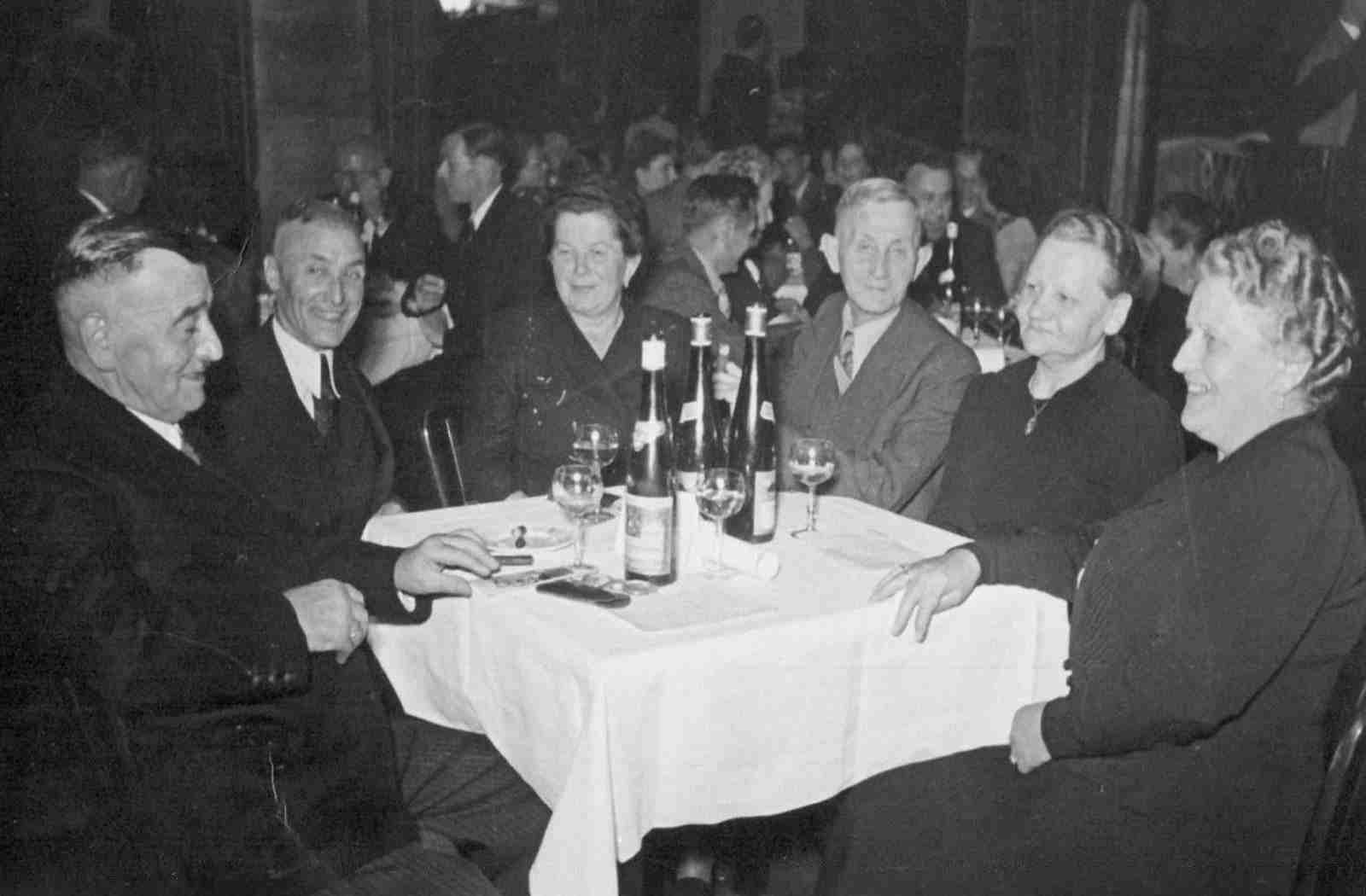
The example below uses Lightbox V3 with standalone images. Each image opens in its own lightbox when you click it.
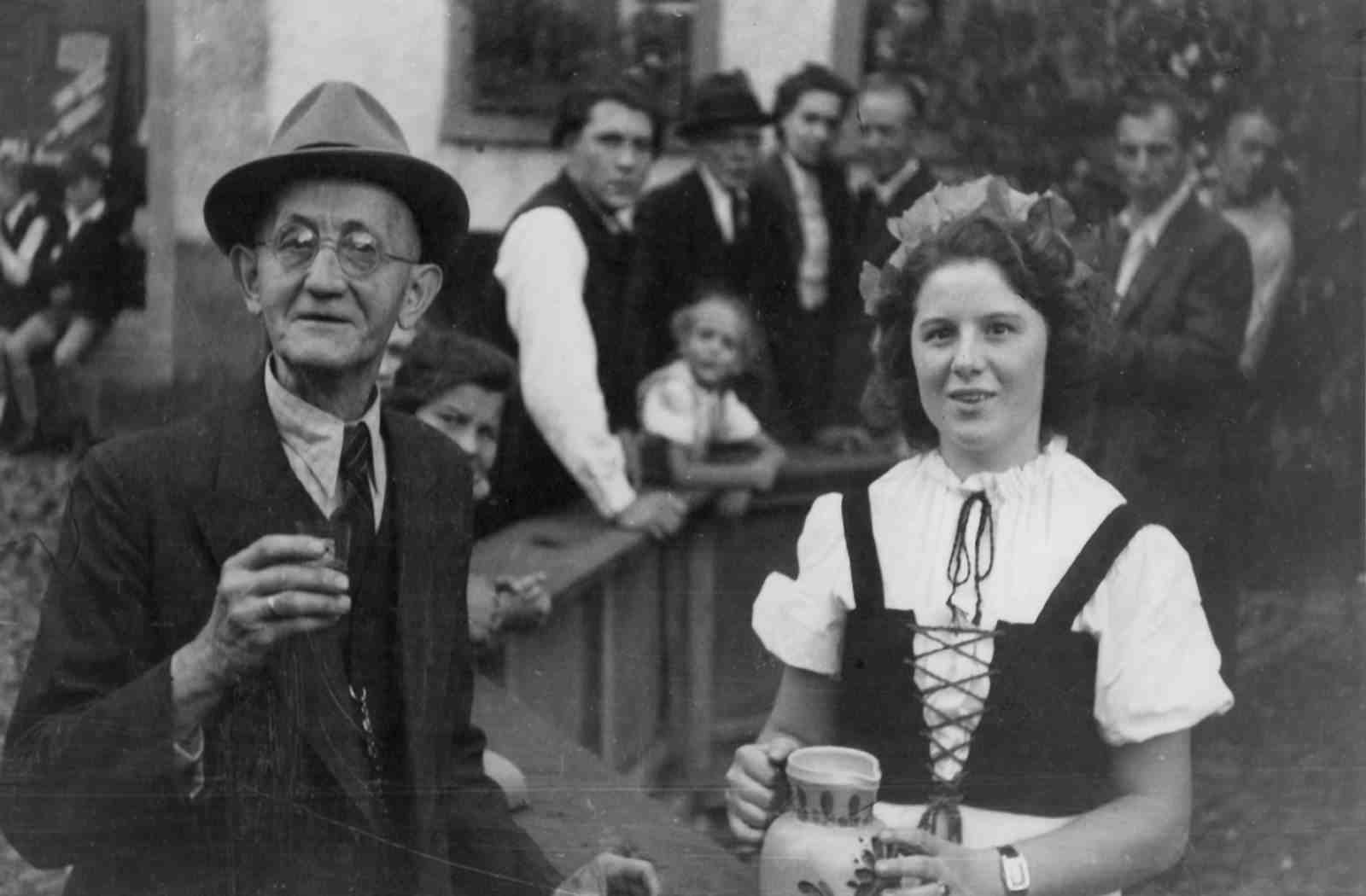
The J1 lightbox can also handle a group of images. Click any image in the group below: the lightbox opens and you can step through the other images in the same group with the arrow buttons.

J1 Slider
The J1 Slider is a slideshow that visitors can click or swipe through. It is built on SwiperJS (version 1.2.0, January 2025) and adapts to every screen size, from desktop to phone.
Text Sliders
A slider does not have to show images — it can also show text. The J1 Template includes several styles of text sliders you can use as small banners or animated messages on a page.
| A text slider is a great way to highlight important statements at the top of an article or section. The J1 Template offers different animations to match your style. |
Base Text Slider
A base text slider shows a series of short statements one after another, all on a single line. It is a good way to grab the reader’s attention and to fit several facts in a small space.
Parallax Text Slider
A parallax text slider adds a small depth effect to the slides — the text seems to move at a different speed than the background. Use this style when you want the text itself to be the main focus, without the distraction of background images.
Image Slider
Image sliders (also called carousels) show a series of pictures one after another. They are perfect for an animated banner that introduces your site, your products, or any visual story you want to tell.
Multi Slide Slider
You can also combine a slider with a lightbox. The result is a very compact image gallery: visitors browse the slides, and when they want a closer look, they click an image to enlarge it in the lightbox.
| The J1 lightbox module also supports image groups. Once one image is open in the lightbox, visitors can step through the rest of the group with simple arrow buttons. |
One Slide Slider
SwiperJS supports both single-image and multi-image slideshows. The example below shows a single image at a time, with arrow buttons to step back and forth and a row of dots ("pagination") that shows how many slides there are.
Slider Layouts
A layout changes how a slider looks and behaves — not the slides themselves, but the way they are arranged on screen. Layouts can make a slideshow easier to navigate or more visually striking:
-
Layout Thumb
-
Layout Neighbor
-
Layout Panorama
The following examples show the layout options in action.
Layout Thumb
The thumb layout adds a row of small preview images (called thumbnails) above or below the main slider. Visitors can click a thumbnail to jump to that slide, or use the pagination buttons to step through them.
| This layout looks best with high-quality images on websites that are mostly used on desktop computers, where you have more space. |
This example places thumbnails above the main slider. The layout uses two rows (one for the big image and one for the thumbnails), which takes more space but shows the images at their best.
Layout Neighbor
The Neighbor layout shows the current slide in the middle, with a small preview of the slide before it on the left and a preview of the next slide on the right. Click the left preview to go one slide back, or the right preview to go one slide forward.
| With the Neighbor layout, the slider feels compact and self-contained — no need for extra navigation buttons. |
Layout Panorama
The Panorama layout adds a 3D-like curved effect to a slider. As you move from one slide to the next, the slides appear to flow along a curved surface, like looking through the window of a moving train. This works best for wide images such as landscapes or panoramic photos.
J1 Gallery
A Gallery is a collection of images (or videos) shown together. Galleries are perfect for product photos, portfolios, and event pictures. Visitors can scroll through the gallery, click a single image to enlarge it, or swipe through them on a touchscreen.
The J1 Template offers two gallery types:
-
Grid gallery
-
Block gallery
The two types differ in how the images are arranged. A grid gallery places the images in rows and gives each one the size that fits best. When the browser window changes its width, the rows are rearranged so the images always fill the space.
| Both gallery types in the J1 Template can be combined with a (configurable) lightbox, so visitors can click any photo to see it in a larger size. |
A block gallery keeps every image in its original shape and stacks them like bricks in a wall. Shorter images fill the gaps that taller ones leave behind.
| The galleries below are fully responsive — they change the layout to fit the width of your browser window. Try it yourself: resize your window, or rotate your device, and watch the columns rearrange. |
Grid Gallery
The Masonry module is a library that powers grid-styled galleries in the J1 Template. It places images in evenly aligned columns and efficiently fills the vertical space, even when the images have different heights.
Masonry stacks images like bricks: it slots each image into the first place it fits, so the columns can have different heights but no big empty gaps. The result is a balanced layout that uses the available space well.
Block Gallery
The JustifiedGallery module arranges images in evenly aligned rows as a block. Each row in such a block has the same height, but the images inside it can have different widths. This is the layout style you see on photo sites like Flickr or Google Photos.
The photos you take are usually a mix of landscape and portrait orientations. A simple grid would have to crop them or leave gaps. JustifiedGallery solves this by keeping each image in its original shape and adjusting the widths so every row fills the page neatly.
The J1 Template combines JustifiedGallery with the lightbox so visitors can click any photo for an enlarged view. You will recognise this layout from many websites across the Internet.
What next
We hope you enjoyed exploring what the J1 Template can do with images. But there is much more — next up is audio. The J1 Template plays both audio and video on web pages using HTML5, the modern web standard. HTML5 plays audio and video right in the browser, so visitors do not need any extra software. Older players such as Flash Player, QuickTime, and Silverlight are no longer needed. The J1 Template plays media files from your own website and from online sources on the Internet.
Curious? Have a look at the Audio Player page next.