The J1 Template comes with a built-in site search. Site search lets your visitors quickly find pages and posts on your website by typing a few words into a search box. The search runs inside the visitor’s browser — you do not have to set up a separate server.
The search engine behind it is called Lunr (spoken: Lunar). Lunr is small and fast, written in JavaScript by Oliver Nightingale, and is fully integrated with the J1 Template.
5-10 Minutes to read.
With the J1 search module, you do not need an external search engine like Google or Bing to add search to your site. But searching a J1 website works a little differently from those services.
Big internet search engines look at the whole web. They use complex algorithms (and lots of artificial intelligence) to figure out what you mean from just a few words, and they often mix in ads. J1 site search only looks at your website. The results are predictable, ad-free, and come back instantly.
The search box works just like any other: type a few words and press Enter. But site search also supports a small query language that lets you write more advanced searches when you need them.
Core concepts
Before you write your own searches, it helps to understand a few key ideas. Once you know them, you can write better and more specific search queries.
Indexing documents
Site search searches all the pages of your website. To do this quickly, the J1 Template builds a search index (a sort of organised list) when your site is generated. The index is loaded into the visitor’s browser, so searches happen without an internet connection to a remote server.
The index is created by a small Jekyll plugin called lunr_index.rb, located in the _plugins folder of your website.
| The full-text index is always created by Jekyll at build time. |
Startup the site ..
Configuration file: ...
 Incremental build: enabled
      Generating...
     J1 site_search: creating search index ...
     J1 site_search: finished, index ready.
     ....
If you are running your website in development mode (with Jekyll auto-rebuilding), the index is refreshed automatically every time you add or edit a file.
site:       Regenerating: n file(s) changed at ...
site:       ...
site:      J1 site_search: creating search index ...
site:      J1 site_search: finished, index ready.
           ...
Documents
In the world of search, a document is one piece of content that can be searched — typically one page or one post on your website. Each document is stored in the search index as a small set of fields, saved in JSON format. The fields are the parts of the page that the search engine can look at, such as the title or the description.
A single document looks like this:
{
  "id": 3,
  "title": "Roundtrip",
  "tagline": "present images",
  "url": "/pages/public/tour/present_images/",
  "date": "2020-11-03 +0100",
  "tags": [
    "Introduction",
    "Module",
    "Image"
  ],
  "categories": [
    "Roundtrip"
  ],
  "description": "Welcome to the preview page ... and galleries.\n",
  "is_post": false
}
Some fields hold the page text — like title, tagline, or description. Other fields hold extra information that can help you narrow down a search — like tags or categories.
| The full text of each page is taken from the HTML |
To support both simple and more advanced searches, Lunr offers a query language — a small set of rules for writing search queries. You will find more about it in the Searching section below.
Scoring
When you search, every page that matches gets a score showing how relevant it is. Pages with the highest scores appear at the top of the results.
The score is calculated by an algorithm called BM25. You do not need to know the details, but the basic idea is simple:
-
If a search word appears often in a page, that page gets a higher score.
-
If the same word appears in many pages of your website, the score it adds is smaller.
In short: rare words count more than common words.
The BM25 score is stored in the search index, so calculating relevance when you search is very fast.
Here is a quick example. Imagine your website is all about Jekyll. The word Jekyll appears on almost every page, so it is not very useful for narrowing things down. Now imagine you search for Jekyll Generator. Only a few pages contain the word Generator, so those pages get a much higher score and show up at the top.
Matching and scoring work the same way in every modern search engine, including J1 site_search. The top results are always the ones the engine thinks are most relevant — just like with Google or Bing.
Searching
To use site search, click the magnifying glass icon in the Quicklinks area at the top right of any page on your website.

Clicking the icon opens the search input field and dims the rest of the navigation, so you can focus on typing your query.

The results for a search for the word Jekyll might look like this:
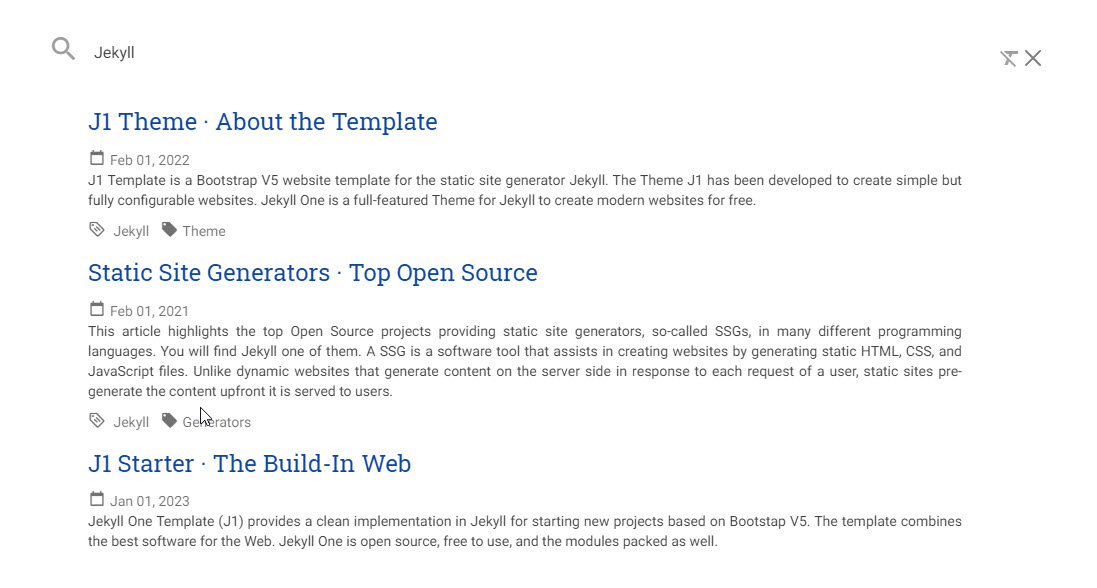
At first glance, a search query looks like ordinary text. But the search engine transforms the words you type into a real query behind the scenes. The query language supports a special syntax for more precise searches, which we will cover next.
Simple searches
The simplest search is just the word you are looking for. Type it into the search box and press Enter.
jekyllThe example above returns every page that contains the word jekyll. You can also search for several words at once. By default, a page shows up in the results if it matches at least one of your words — in other words, the search engine combines the words with a logical OR.
jekyll tutorialThe query above matches every page that contains either jekyll or tutorial. Pages that contain both words get a higher score and appear at the top of the results.
| With Google, multiple words are usually combined with a logical AND (the page must contain all of them). J1 site_search uses OR by default. To force the AND behaviour, see the next paragraph. |
To require all the words (the way Google does it), put a plus sign + in front of each one:
+jekyll +tutorialWildcards
A wildcard is a special character that means "any letters here". In J1 site search, the wildcard is the character * (spoken: star). You can put it anywhere in a search word.
For example, the query below matches every page that contains a word beginning with jek:
jek*| Search ignores upper and lower case. Jekyll and jekyll return the same results. The engine also reduces words to their base form, so Generators and Generator return the same results. In short: do not worry about grammar or case — but spelling does matter. If you are not sure how a word is spelled, use a wildcard. |
Fields
By default, Lunr searches all fields of a document at once. But you can also tell the search engine to look in one specific field — for example, only in the page title.
The example below searches for the word jekyll only in the title field:
title:jekyllThe search word is prefixed with the field name, followed by a colon :.
| The field must be one of the fields the index was built with. Unknown field names will cause an error. |
You can combine field searches with other rules such as wildcards. For example, the query below searches for words starting with jek in the title and words starting with coll anywhere in the document:
+title:jek* +TemplateBelow is a list of the fields you can search in.
| Name | Value | Description | Example |
|---|---|---|
|
| The headline of a document (article, post) Example: site_search |
|
| The subtitle of a document (article, post) Example: full index search |
|
| Tags describe the content of a document. Example: Roundtrip, site_search |
|
| Categories describe the group of documents a document belongs to. Example: Search |
|
| The description is given by the author for a document. It is a brief summary of what the document is about. Example: site_search is based on the search engine Lunr, fully integrated with J1 Template … |
Term presence
By default, Lunr combines several search words with a logical OR. A search for jekyll and collections matches pages that contain either word, or both.
You can change this default by saying which words must be in the results and which words must not:
-
Put a plus sign
+before a word to say "this word must be present". -
Put a minus sign
-before a word to say "this word must be absent".
The query below matches pages that must contain the word jekyll and must not contain the word Generators:
+jekyll -GeneratorsTo get the equivalent of a logical AND (every word must be present), prefix every word with a plus sign:
+jekyll +GeneratorsWhat next
You have completed the J1 Template tour. We hope you found it informative and gained a clear understanding of the template’s capabilities. To learn more, try the next step: J1 in a Day, a tutorial guiding you through building a modern website with the J1 Template. It covers essential basics of both Jekyll and J1 for site owners. Jekyll and J1 operate differently from traditional Content Management Systems (CMS) like WordPress. While prior CMS experience helps, static site generators like Jekyll have unique workflows.
The J1 in a Day tutorial covers:
-
The basics of modern static websites,
-
Building a working site in just a few minutes,
-
Using the J1 Template development system,
-
Project management for a static website,
-
Creating content for J1-based static websites.
The tutorial takes a full day but is a valuable investment. By the end, you will understand the potential of modern static websites and enjoy the learning process. Begin here: J1 in a Day.